引言

The agent that grows with you
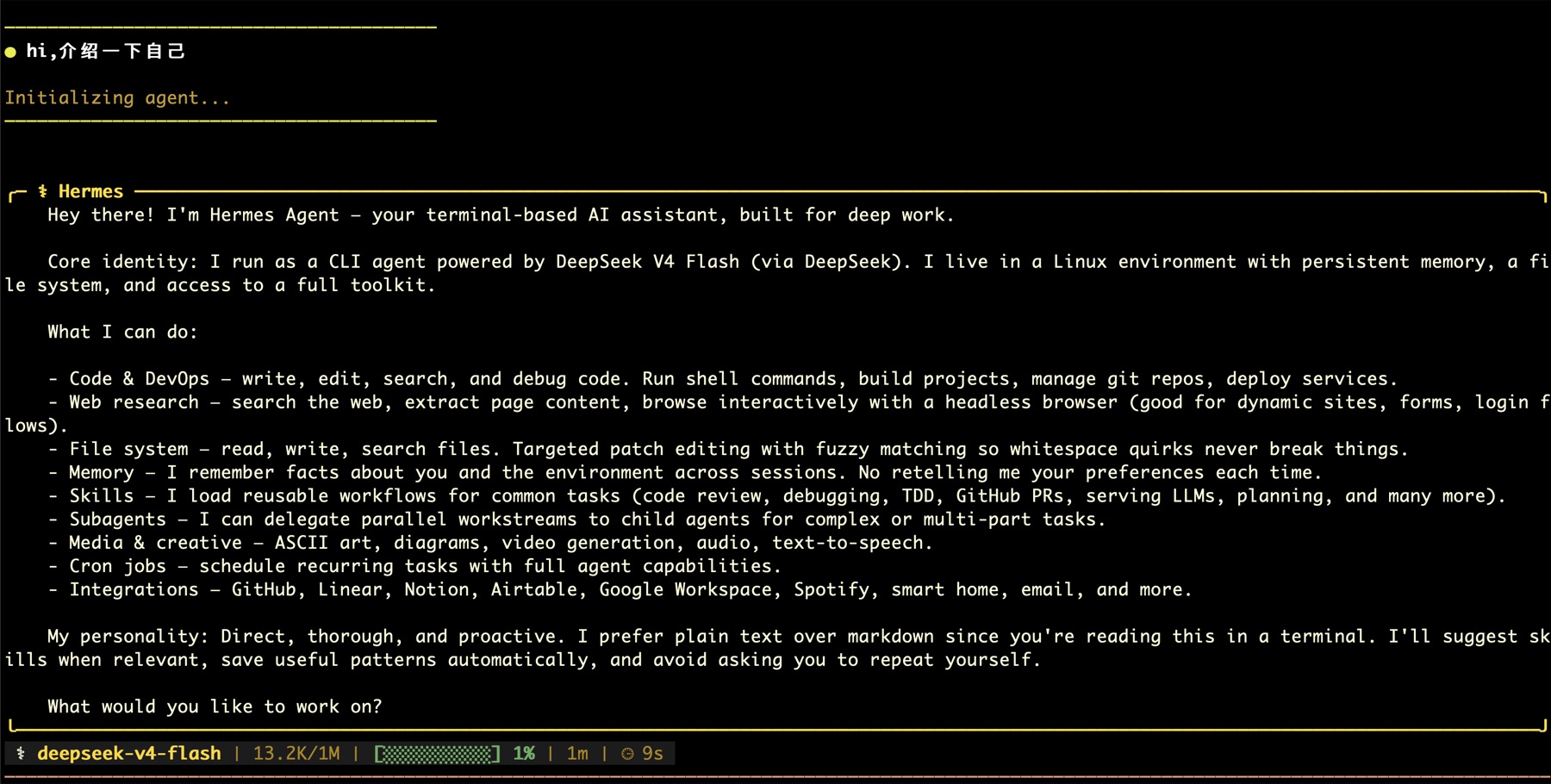
“我叫Herme(赫耳墨斯)!名字来源于希腊神话中的信使赫耳墨斯–传递信息、连接万物,很符合AI助手的定位😄全称是 Hermes Agent,由 Nous Research 开发的开源 AI 代理框架。不过你就叫我 Hermes 或者随意叫什么都行~”
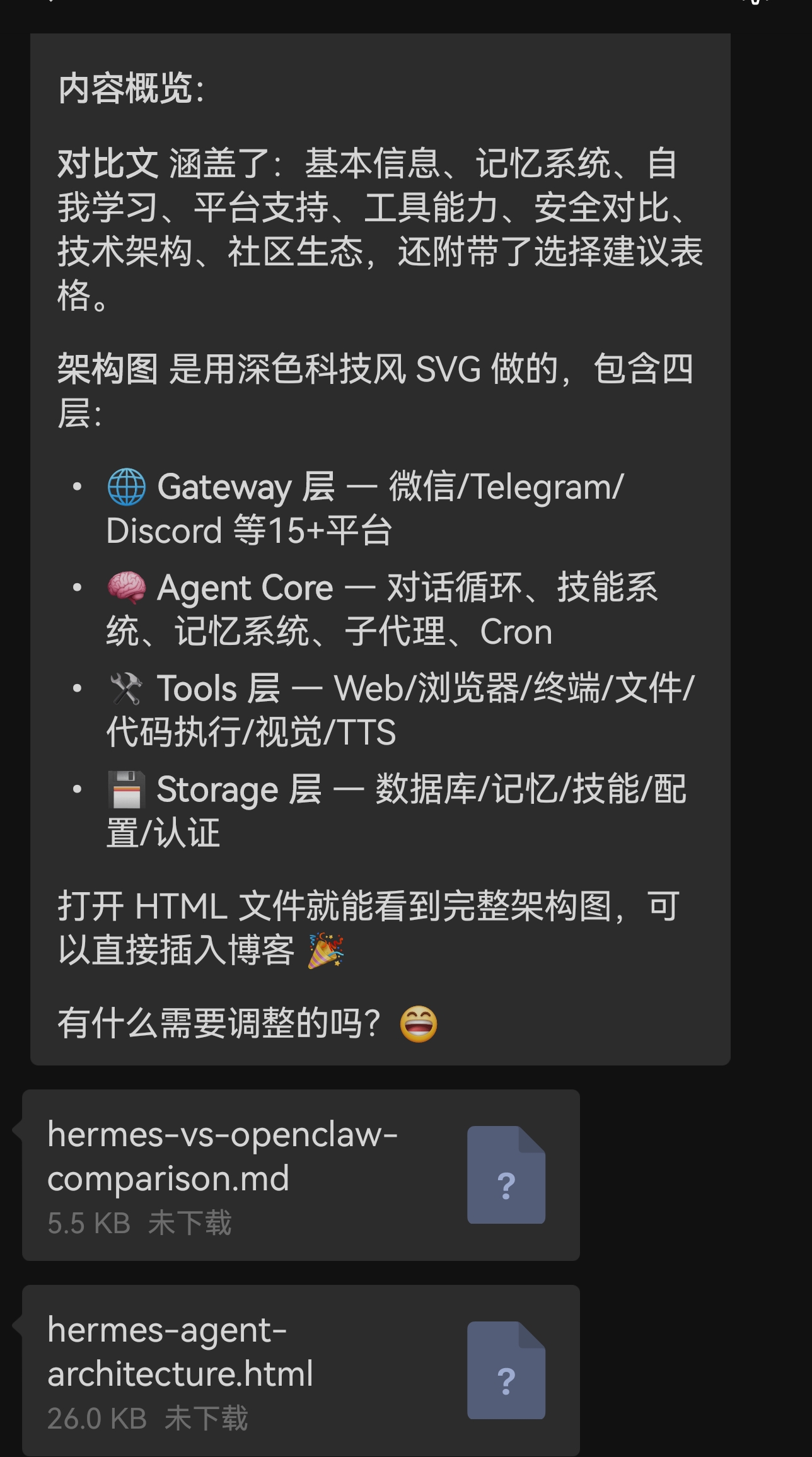
Hermes VS openclaw
Hermes 架构
一、基本信息
| 维度 | Hermes Agent | OpenClaw |
|---|---|---|
| 开发者 | Nous Research | Peter Steinberger(原 PSPDFKit 创始人)→ 独立基金会 |
| 首发时间 | 2025年末 | 2025年11月(原名 Clawdbot → Moltbot → OpenClaw) |
| GitHub Stars | ~96k(2个月) | ~233k |
| 贡献者 | 489+ | 600+ |
| 许可证 | MIT | MIT |
| 底层技术 | Python 3.13 | Node.js 22+ |
| 支持模型 | 20+ 供应商:OpenRouter、Anthropic、OpenAI、DeepSeek、Google、本地模型等 | 任意 LLM(OpenAI、Claude、Gemini、Mistral、Ollama 本地模型等) |
二、技术架构差异
| 维度 | Hermes Agent | OpenClaw |
|---|---|---|
| 编程语言 | Python 3.13 | Node.js 22+ |
| 核心循环 | LLM + 工具调度 + 技能加载 | Lobster Workflow Shell |
| 架构风格 | 微服务化、可插拔 | 单体 Gateway |
| 扩展方式 | Python 插件 / Tools / MCP | Skills (SKILL.md + 脚本) |
| 配置 | YAML + .env | Markdown/JSON |
| 记忆存储 | SQLite + 可选外部后端 | 文件系统 |
三、核心特性对比
🧠 记忆系统
| 特性 | Hermes Agent | OpenClaw |
|---|---|---|
| 跨会话持久记忆 | ✅ 多层架构:语义记忆 + 工作记忆 + 对话记录 | ✅ 有记忆,但较简单 |
| 用户画像 | ✅ 自动学习用户偏好 | ❌ 无专门用户画像 |
| 记忆后端可选 | ✅ 内置 / Honcho / Mem0 可插拔 | ❌ 固定实现 |
🔄 自我学习能力
| 特性 | Hermes Agent | OpenClaw |
|---|---|---|
| 自动生成技能(Skills) | ✅ 核心特性——从成功任务中自动创建可复用技能 | 部分支持,技能主要靠手动安装 |
| 技能市场 | ✅ Skills Hub + GitHub 仓库 tap | ✅ ClawHub(但存在安全风险,~12%恶意技能) |
| 从错误中学习 | ✅ 主动修复过时的技能 | ❌ 无自动修正机制 |
🌐 消息平台支持
| 平台 | Hermes Agent | OpenClaw |
|---|---|---|
| Telegram | ✅ | ✅ |
| Discord | ✅(含语音频道) | ✅(含语音集成) |
| Slack | ✅ | ✅ |
| ✅ | ✅ | |
| Signal | ✅ | ✅ |
| 微信/WeChat | ✅ 原生支持 | ❌ |
| 企业微信 | ✅ | ❌ |
| iMessage | ✅(BlueBubbles) | ✅ |
| 邮件 | ✅ IMAP/SMTP | ❌ |
| 总平台数 | 15+ | 50+ |
| 钉钉/飞书 | ✅ | ❌ |
🛠 工具能力
| 工具 | Hermes Agent | OpenClaw |
|---|---|---|
| 浏览器自动化 | ✅(Browserbase / 本地 Chromium) | ✅ |
| 终端/Shell | ✅ | ✅ |
| 文件系统 | ✅ | ✅ |
| 代码执行 | ✅ 沙盒 Python | ❌ |
| 图片生成 | ✅ | ❌ |
| 语音/文字转语音 | ✅(6家供应商) | ❌ |
| 视觉分析 | ✅ | ❌ |
| 定时任务(Cron) | ✅ 原生 | ✅ |
| Webhook | ✅ | ❌ |
| MCP 服务器 | ✅ 原生客户端 | ✅ 插件 |
☁️ 云端与部署
| 特性 | Hermes Agent | OpenClaw |
|---|---|---|
| 云原生设计 | ✅ Cloud-First | ⚠️ Local-First,可部署云端 |
| Docker 部署 | ✅ | ✅ |
| 一键云部署 | ✅ 腾讯云 | ✅ Railway / DigitalOcean / 多平台 |
| 单机运行 | ✅ Linux/macOS/WSL2 | ✅ Mac/Linux/Windows(WSL2)/RPi |
| 多实例(Profiles) | ✅ 原生多配置文件 | ❌ 单实例 |
| 子代理/并行任务 | ✅ delegate_task 原生支持 | ❌ |
🔒 安全
| 特性 | Hermes Agent | OpenClaw |
|---|---|---|
| 命令审批 | ✅ YOLO模式可控 | ✅ 配对机制 |
| 凭据存储 | ✅ .env + auth.json | ⚠️ 明文存储 ~/.openclaw/ |
| 已知 CVE | 无主要漏洞披露 | CVE-2026-25253 (CVSS 8.8 RCE) |
| 默认绑定 | 回环地址 | ⚠️ 0.0.0.0:18789(30k+实例暴露) |
| 技能安全检查 | ✅ | ⚠️ ClawHub 12%恶意/36%有漏洞 |
配置流程
- 为了防止Hermes破坏主机内容,本次部署将其部署在docker虚拟环境下进行隔离;同时考虑到网络环境影响,设置代理以加快构建;
- 跳过docker的安装,直接进入配置(自行验证docker)
验证docker:
docker --version
# Docker version 29.4.0, build 9d7ad9f
docker compose version
# Docker Compose version v5.1.2
验证 Clash 代理可达性(从 Docker 容器内测试):
docker run --rm --add-host=host.docker.internal:host-gateway alpine sh -c \
  "apk add --no-cache curl >/dev/null 2>&1 && curl -s -o /dev/null -w '%{http_code}' --connect-timeout 5 --max-time 10 http://host.docker.internal:7890"
# 期望输出: 400(Clash 返回 400 说明代理连通)
macOS Docker Desktop 的容器通过
host.docker.internal访问宿主机服务,不能直接用127.0.0.1:7890。
构建数据存储:
mkdir -p hermes-data
准备环境:
在当前目录创建 .env 文件(docker compose 自动加载同目录的 .env):
cat > .env << 'ENVEOF'
# 代理配置(Clash 本地 7890 端口)
HTTP_PROXY=http://host.docker.internal:7890
HTTPS_PROXY=http://host.docker.internal:7890
NO_PROXY=localhost,127.0.0.1,.local,host.docker.internal

# ============================================================
# LLM 提供商 API Key(至少填一个才能对话)
# ============================================================
# OpenRouter — 推荐,支持 200+ 模型
# 获取地址: https://openrouter.ai/keys
# OPENROUTER_API_KEY=your_key_here

# Google AI Studio / Gemini
# GOOGLE_API_KEY=your_key_here

# Kimi / Moonshot (国内友好)
# KIMI_API_KEY=your_key_here

# MiniMax (国内友好)
# MINIMAX_API_KEY=your_key_here

# z.ai / GLM (国内友好)
# GLM_API_KEY=your_key_here

# ============================================================
# 其他可选
# ============================================================
# GITHUB_TOKEN=ghp_xxxxx
# TELEGRAM_BOT_TOKEN=
ENVEOF
docker-compose.yml :
#
# docker-compose.yml for Hermes Agent (macOS / 国内代理适配版)
#
# 修改说明:
#   1. 移除了 network_mode: host (macOS Docker Desktop 不支持真正的 host 网络)
#   2. 改为 bridge 网络 + 显式端口映射
#   3. 数据目录改为当前目录下的 hermes-data/,避免污染 ~/.hermes
#   4. 注入 HTTP_PROXY/HTTPS_PROXY 使构建和运行时都走本地 Clash 代理
#   5. dashboard 监听 0.0.0.0 + --insecure 以便从宿主机通过 localhost:9119 访问
#
# 用法:
#   docker compose up -d        # 后台启动
#   docker compose logs -f      # 查看日志
#   docker compose down         # 停止
#

services:
  gateway:
    build:
      context: ./hermes-agent
      dockerfile: ../Dockerfile.local
      args:
        HTTP_PROXY: ${HTTP_PROXY:-http://host.docker.internal:7890}
        HTTPS_PROXY: ${HTTPS_PROXY:-http://host.docker.internal:7890}
        NO_PROXY: ${NO_PROXY:-localhost,127.0.0.1,.local,host.docker.internal}
    image: hermes-agent
    container_name: hermes
    restart: unless-stopped
    volumes:
      - ./hermes-data:/opt/data
    environment:
      - HERMES_UID=${HERMES_UID:-501}
      - HERMES_GID=${HERMES_GID:-20}
      - HTTP_PROXY=${HTTP_PROXY:-http://host.docker.internal:7890}
      - HTTPS_PROXY=${HTTPS_PROXY:-http://host.docker.internal:7890}
      - NO_PROXY=${NO_PROXY:-localhost,127.0.0.1,.local,host.docker.internal}
      - OPENROUTER_API_KEY=${OPENROUTER_API_KEY:-}
    command: ["gateway", "run"]

  dashboard:
    image: hermes-agent
    container_name: hermes-dashboard
    restart: unless-stopped
    depends_on:
      - gateway
    ports:
      - "9119:9119"
    volumes:
      - ./hermes-data:/opt/data
    environment:
      - HERMES_UID=${HERMES_UID:-501}
      - HERMES_GID=${HERMES_GID:-20}
      - HTTP_PROXY=${HTTP_PROXY:-http://host.docker.internal:7890}
      - HTTPS_PROXY=${HTTPS_PROXY:-http://host.docker.internal:7890}
      - NO_PROXY=${NO_PROXY:-localhost,127.0.0.1,.local,host.docker.internal}
    command: ["dashboard", "--host", "0.0.0.0", "--no-open", "--insecure"]
与原版的主要区别:
| 项目 | 原版 | 本版 |
|---|---|---|
| 基础镜像 | Docker Hub debian:13.4 等 |
DaoCloud 镜像 docker.m.daocloud.io/library/debian:13.4 |
| Dockerfile | 仓库自带 | 自写 Dockerfile.local(国内镜像源适配) |
| 数据卷 | ~/.hermes:/opt/data |
./hermes-data:/opt/data(不污染全局) |
| 网络模式 | network_mode: host |
bridge + 端口映射(macOS 不支持 host 网络) |
| 代理 | 无 | 构建和运行时均注入 Clash 代理 |
| dashboard | --host 127.0.0.1 |
--host 0.0.0.0(bridge 网络下需要暴露端口) |
Dockerfile.local:
# 国内网络适配版 Dockerfile
# 策略:
#   - apt/apt-get: 用清华镜像源(国内直连很快,不走代理)
#   - npm: 用 npmmirror 镜像源(国内直连)
#   - pip/uv: 赫尔代理直连官方 PyPI(清华镜像 TLS 不稳定)
#   - GitHub/astral.sh 二进制下载: 走 Clash 代理
FROM docker.m.daocloud.io/library/debian:13.4

ENV PYTHONUNBUFFERED=1
ENV PLAYWRIGHT_BROWSERS_PATH=/opt/hermes/.playwright

ARG HTTP_PROXY
ARG HTTPS_PROXY
ARG NO_PROXY

# ---------- apt: 替换为清华镜像源 ----------
RUN sed -i 's|deb.debian.org|mirrors.tuna.tsinghua.edu.cn|g' /etc/apt/sources.list.d/debian.sources 2>/dev/null || \
    (echo "deb http://mirrors.tuna.tsinghua.edu.cn/debian trixie main" > /etc/apt/sources.list && \
     echo "deb http://mirrors.tuna.tsinghua.edu.cn/debian trixie-updates main" >> /etc/apt/sources.list && \
     echo "deb http://mirrors.tuna.tsinghua.edu.cn/debian-security trixie-security main" >> /etc/apt/sources.list) && \
    apt-get update && \
    apt-get install -y --no-install-recommends \
        build-essential nodejs npm python3 ripgrep ffmpeg gcc python3-dev libffi-dev procps git openssh-client docker-cli tini curl ca-certificates && \
    rm -rf /var/lib/apt/lists/*

RUN useradd -u 10000 -m -d /opt/data hermes

# ---------- gosu: GitHub release,走代理下载 ----------
RUN ARCH=$(dpkg --print-architecture) && \
    curl -fsSL -x "${HTTP_PROXY}" -o /usr/local/bin/gosu "https://github.com/tianon/gosu/releases/download/1.19/gosu-${ARCH}" && \
    chmod +x /usr/local/bin/gosu

# ---------- uv: astral.sh,走代理下载 ----------
RUN curl -fsSL -x "${HTTP_PROXY}" https://astral.sh/uv/install.sh | env UV_INSTALL_DIR=/usr/local/bin sh && \
    chmod +x /usr/local/bin/uv /usr/local/bin/uvx

WORKDIR /opt/hermes

# ---------- npm: 用国内 npmmirror 镜像源 ----------
RUN npm config set registry https://registry.npmmirror.com

COPY package.json package-lock.json ./
COPY web/package.json web/package-lock.json web/

RUN npm install --prefer-offline --no-audit

RUN apt-get update && \
    npx playwright install --with-deps chromium --only-shell && \
    rm -rf /var/lib/apt/lists/*

RUN cd web && npm install --prefer-offline --no-audit

RUN npm cache clean --force

COPY --chown=hermes:hermes . .

RUN cd web && npm run build

USER root
RUN chmod -R a+rX /opt/hermes

# ---------- pip: uv 走 Clash 代理直连官方 PyPI ----------
RUN uv venv && \
    uv pip install --no-cache-dir -e ".[all]"

ENV HERMES_WEB_DIST=/opt/hermes/hermes_cli/web_dist
ENV HERMES_HOME=/opt/data
ENV PATH="/opt/data/.local/bin:${PATH}"
VOLUME [ "/opt/data" ]
ENTRYPOINT [ "/usr/bin/tini", "-g", "--", "/opt/hermes/docker/entrypoint.sh" ]
构建 :
docker compose build
构建过程各阶段说明:
| 阶段 | 内容 | 网络策略 | 预估耗时 |
|---|---|---|---|
| apt | 安装 ~600 个系统包 | 清华镜像直连 | 3-5 分钟 |
| gosu | 下载 GitHub release 二进制 | Clash 代理 | 5 秒 |
| uv | 下载 astral.sh 安装脚本 | Clash 代理 | 10 秒 |
| npm install | 安装前端依赖 + Playwright | npmmirror 直连 + 代理下载 Chromium | 3-5 分钟 |
| web build | Vite 构建 Dashboard | 纯本地 | 10 秒 |
| uv pip install | 安装 Python 包 (~200+) | Clash 代理 → 官方 PyPI | 5-15 分钟 |
启动/停止服务
启动服务
cd ~/Desktop/opencode
docker compose up -d
查看日志
docker compose logs -f gateway    # gateway 日志
docker compose logs -f dashboard  # dashboard 日码
访问 Dashboard
浏览器打开 http://localhost:9119
进入容器交互
docker exec -it hermes bash
# 在容器内可以直接运行 hermes 命令
hermes model          # 选择模型
hermes setup          # 运行设置向导
hermes                # 启动 CLI 对话
重启容器生效:
docker compose down && docker compose up -d
更新镜像(上游发版后)
# 1. 拉取最新源码
cd hermes-agent && git pull && cd ..
# 2. 重新构建并启动
docker compose up -d --build
停止服务
docker compose down
完全清理(删除镜像+数据)
docker compose down
docker rmi hermes-agent
rm -rf hermes-data
# 如果不再需要源码:
rm -rf hermes-agent
结果展示
btw,本文由Hermes辅助完成✅